Your Personalized Health Companion
We’ve refreshed the MemorialCare App to make it an easier and more personalized way to manage your health care. The updated app provides secure, on-the-go access to your health information and care team, offering an improved experience tailored to your needs.
Easily schedule in-person or virtual visits, message your providers, review test results and visit summaries, renew prescriptions, pay bills, and manage care for your whole family. Whether you need care now or are planning ahead, the MemorialCare App helps you stay informed and in control.
What’s New
- Modern look with improved usability – redesigned login and dashboard screens make finding care easy
- Simplified scheduling for in-person and virtual visits, including quick access to our “Get Care Now” options for urgent health needs
- Enhanced provider search lets you find doctors within your network, see nearby office locations, and view detailed bios, without needing to leave the app
For Current MemorialCare App Users:
Download our refreshed app. You’ll still find everything you rely on—now with a smoother experience and enhanced features that make managing your care even easier.
For myChart App Users:
Thinking of switching to the MemorialCare app? It's easy. Just download the MemorialCare app and log in with your current MemorialCare myChart username and password.
 |  |
Discover What the MemorialCare App Can Do for You
Take a quick tour through this slideshow to see how the app helps you manage your care with ease, anytime and anywhere.

Welcome to the MemorialCare App
Your health care should be simple, connected, and built around your life. The MemorialCare app brings your essential tools together—scheduling, test results, messaging, urgent care options, and more.
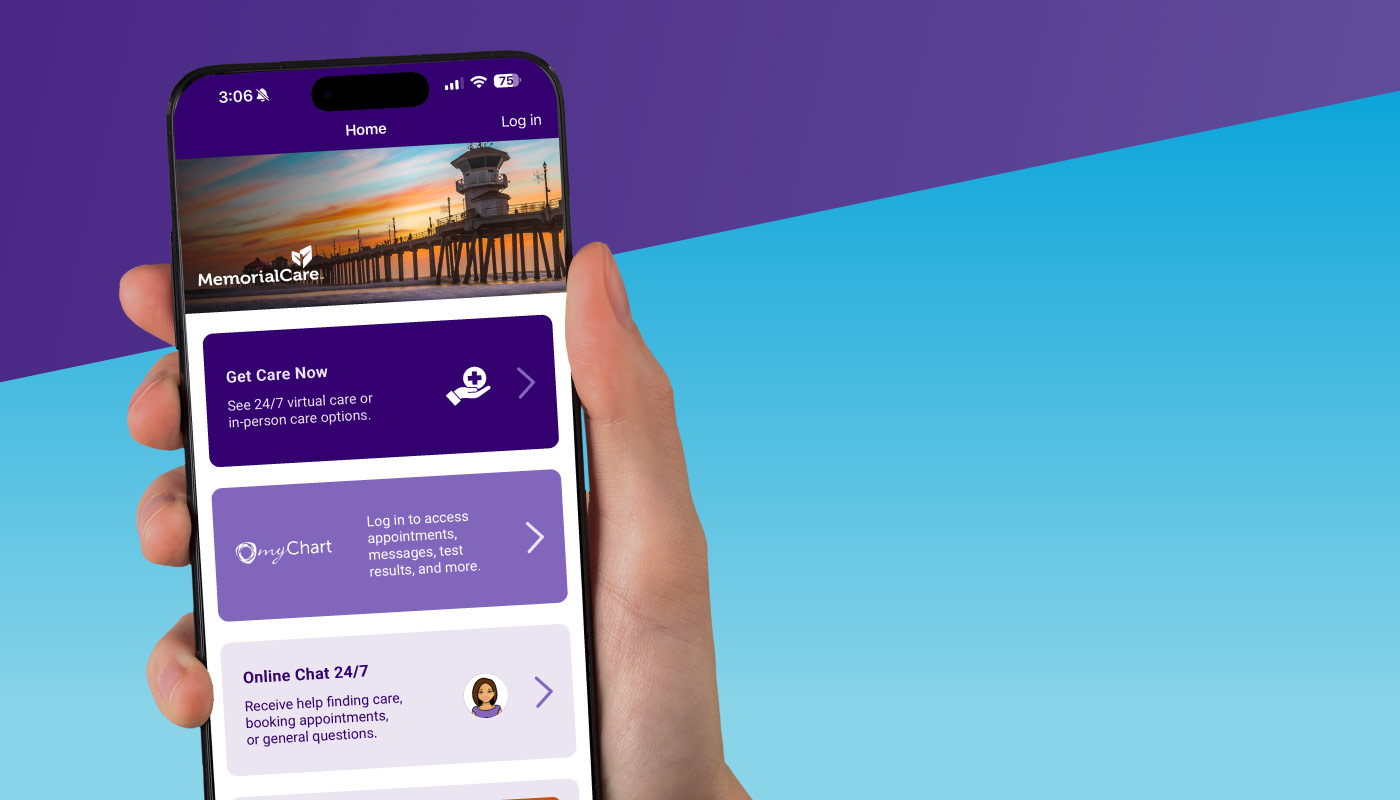
Get Care Fast—Even Before Signing In
The login page lets you take action right away. Whether you need urgent virtual care, want to find a provider, or prefer to start a chat with our 24/7 virtual assistant, you can access essential services instantly—even without logging in.
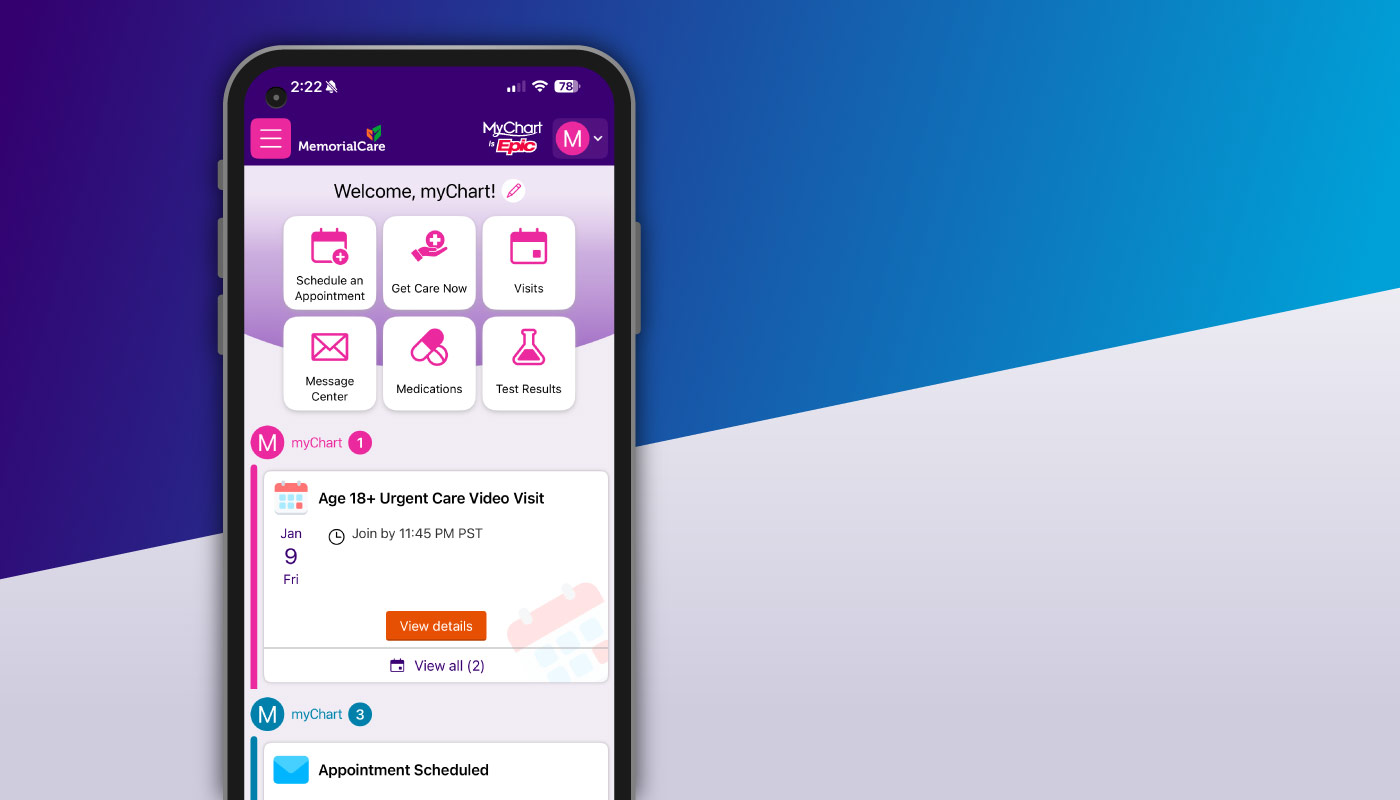
Your myChart Dashboard at a Glance
The myChart Dashboard is designed to help you access your most-used features immediately. With quick links for scheduling, messaging, medications, and test results, plus a scrollable feed of your upcoming visits and helpful reminders, it keeps your most important health tools front and center.
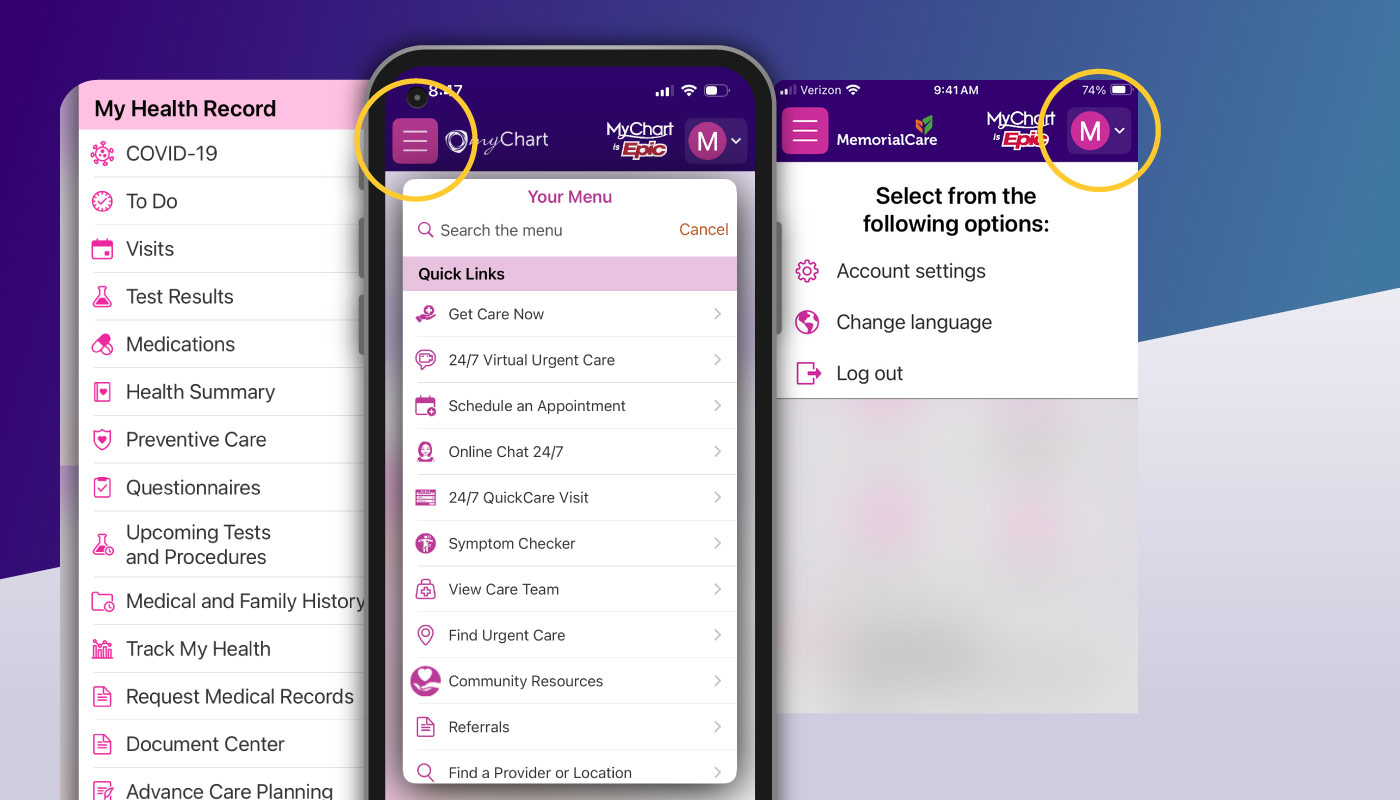
How to Navigate the App
Navigation is simple with the hamburger menu on the left and the caret menu on the right. Together, they organize everything—from your health record and billing to communication tools, resources, insurance, and app settings—so you can find exactly what you need without searching.
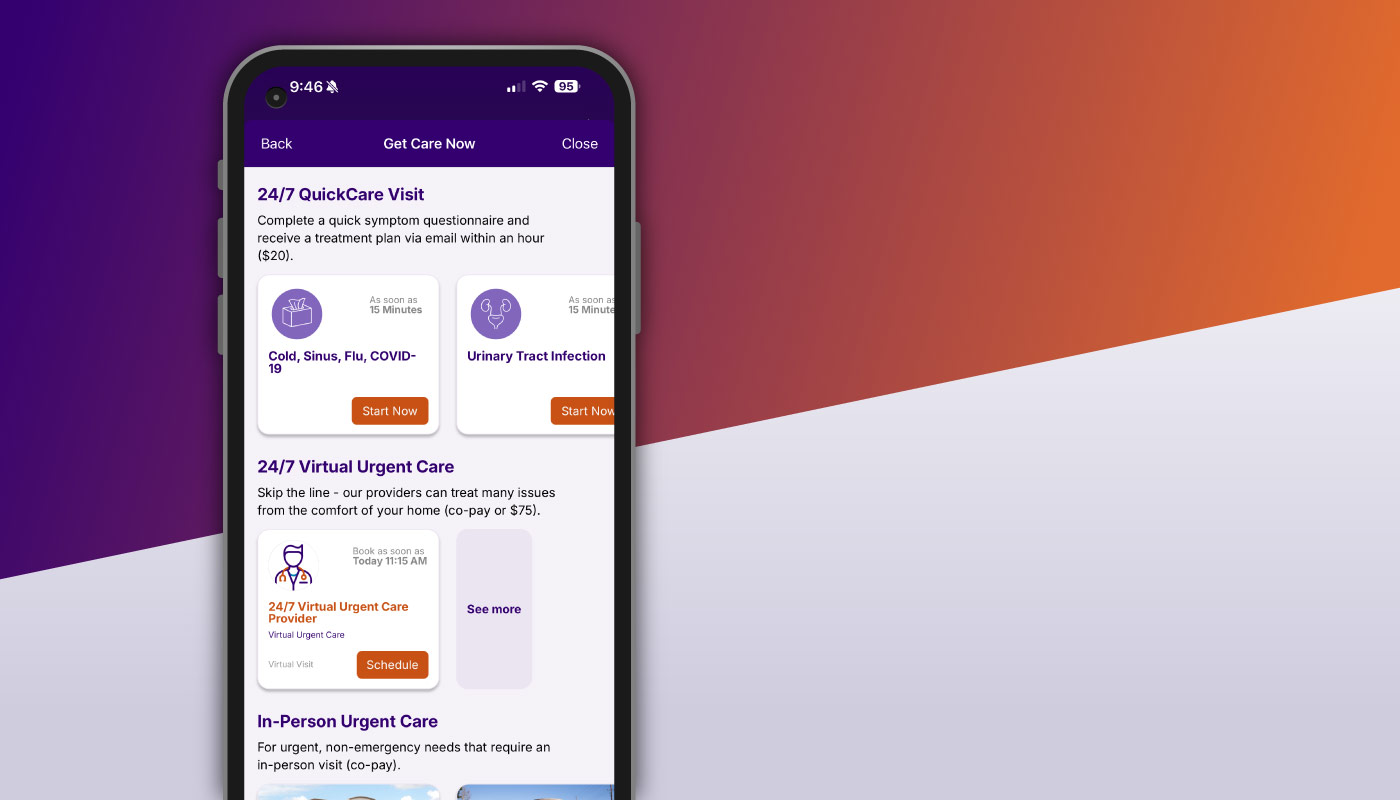
Options to Get Care Now
Health concerns don’t wait, and neither should you. Whether you’re a current MemorialCare patient or not, you can get quick access to trusted, high-quality care from anywhere in California. From online chat and nurse advice to virtual and in-person visits, choose the care that’s right for you.
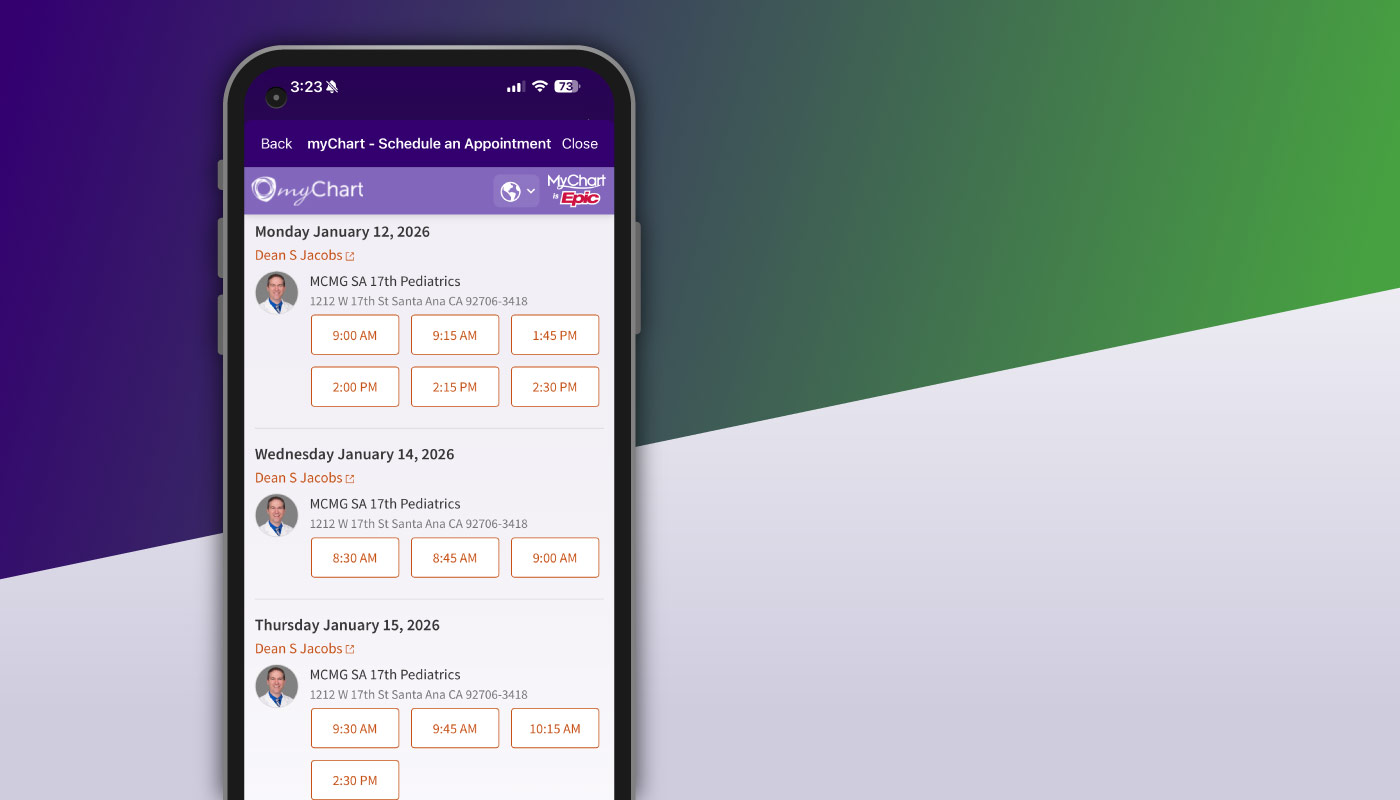
Book Your Visit in Just a Few Taps
Scheduling an appointment is quick and seamless. Select the “Schedule an Appointment” button, browse available providers, choose your visit reason, and pick a convenient time. Before your appointment, you may be asked to complete a Pre-Visit Check, which will save you time when you arrive.
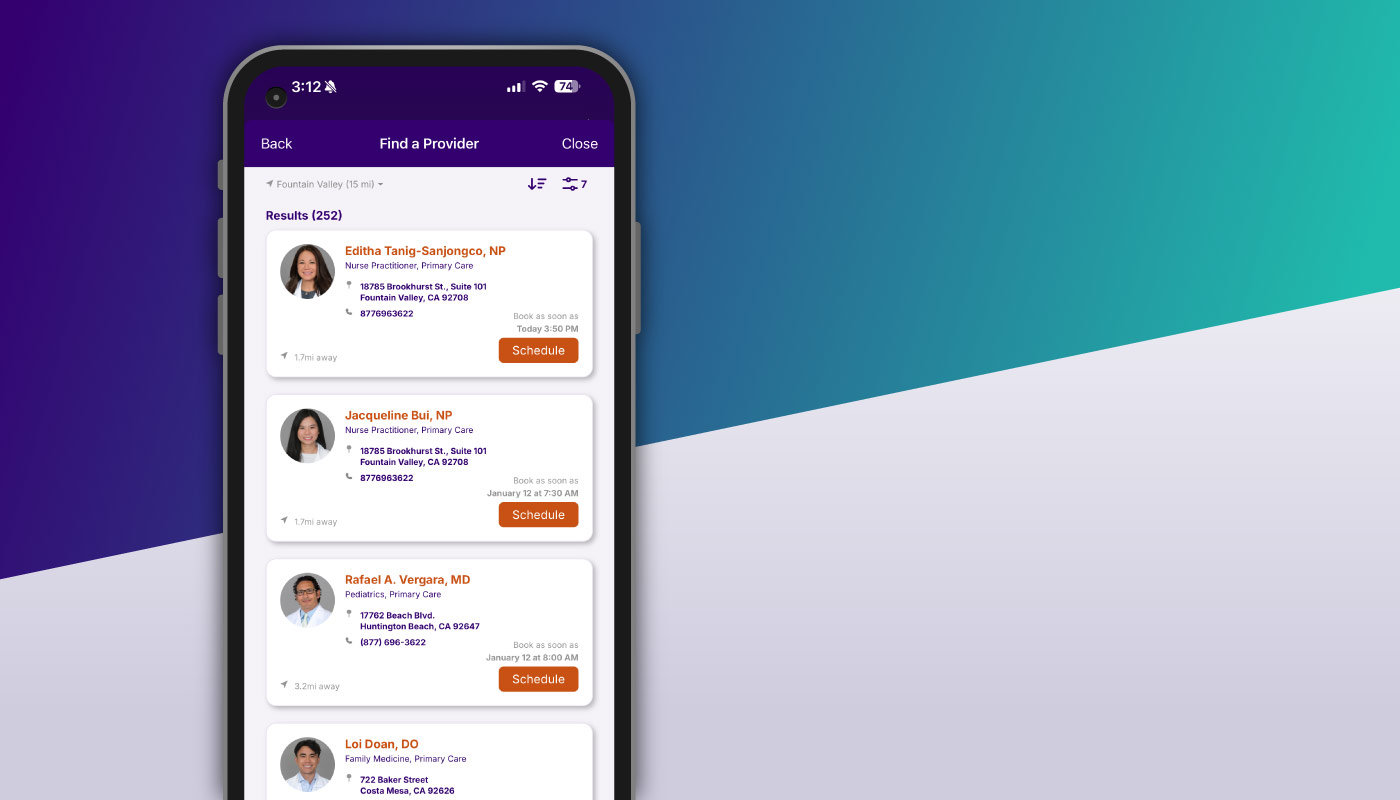
Find Providers That Fit Your Needs
With the Find a Provider tool, you can explore recommended providers or refine your search by specialty, location, availability, language, gender, and more. Once you select a provider, you can move straight into choosing a visit reason and scheduling—bringing you closer to the care you need.
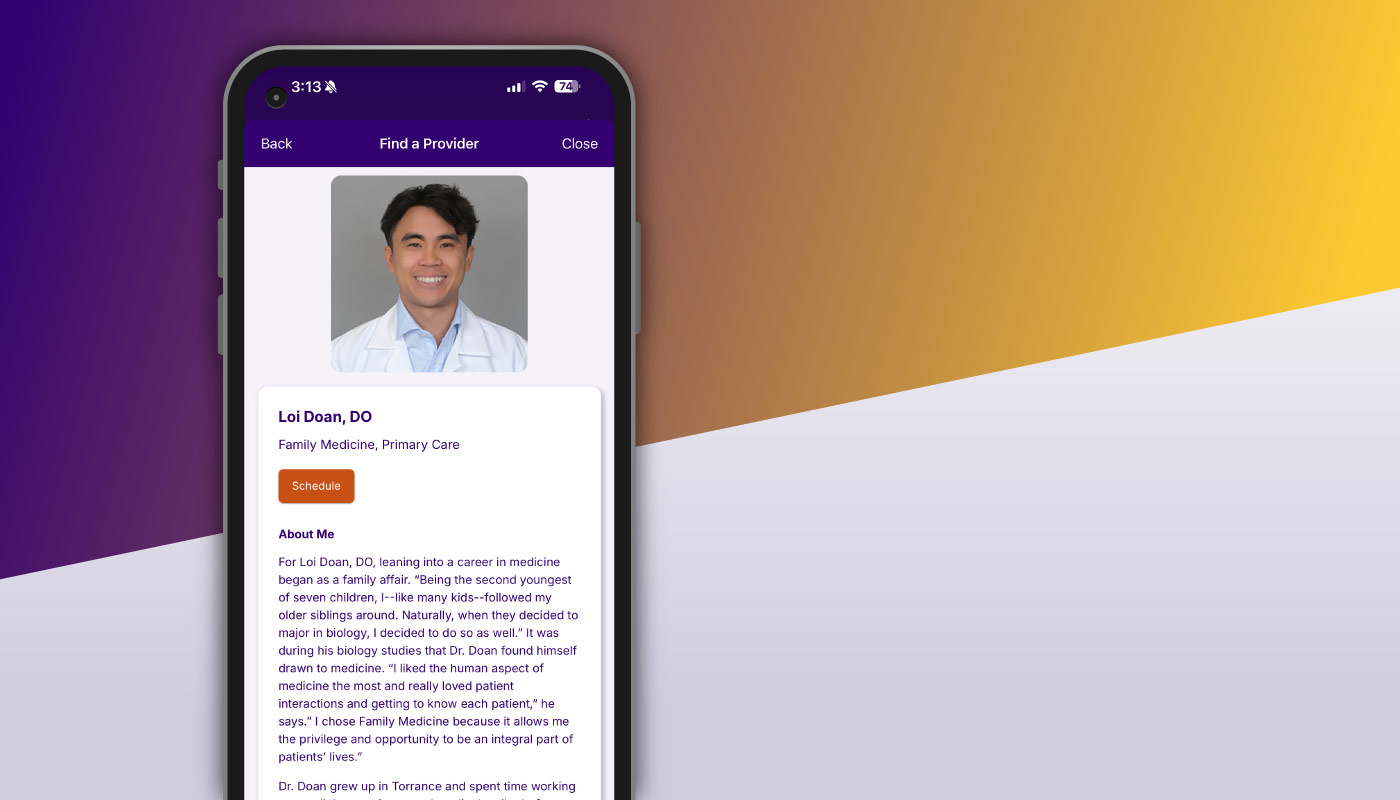
Get to Know a Provider Before Booking
Provider profiles give helpful insights to make an informed choice. View photos, bios, specialties, training, languages spoken, and office locations. If online scheduling is available, tap the schedule button to see openings and book instantly.
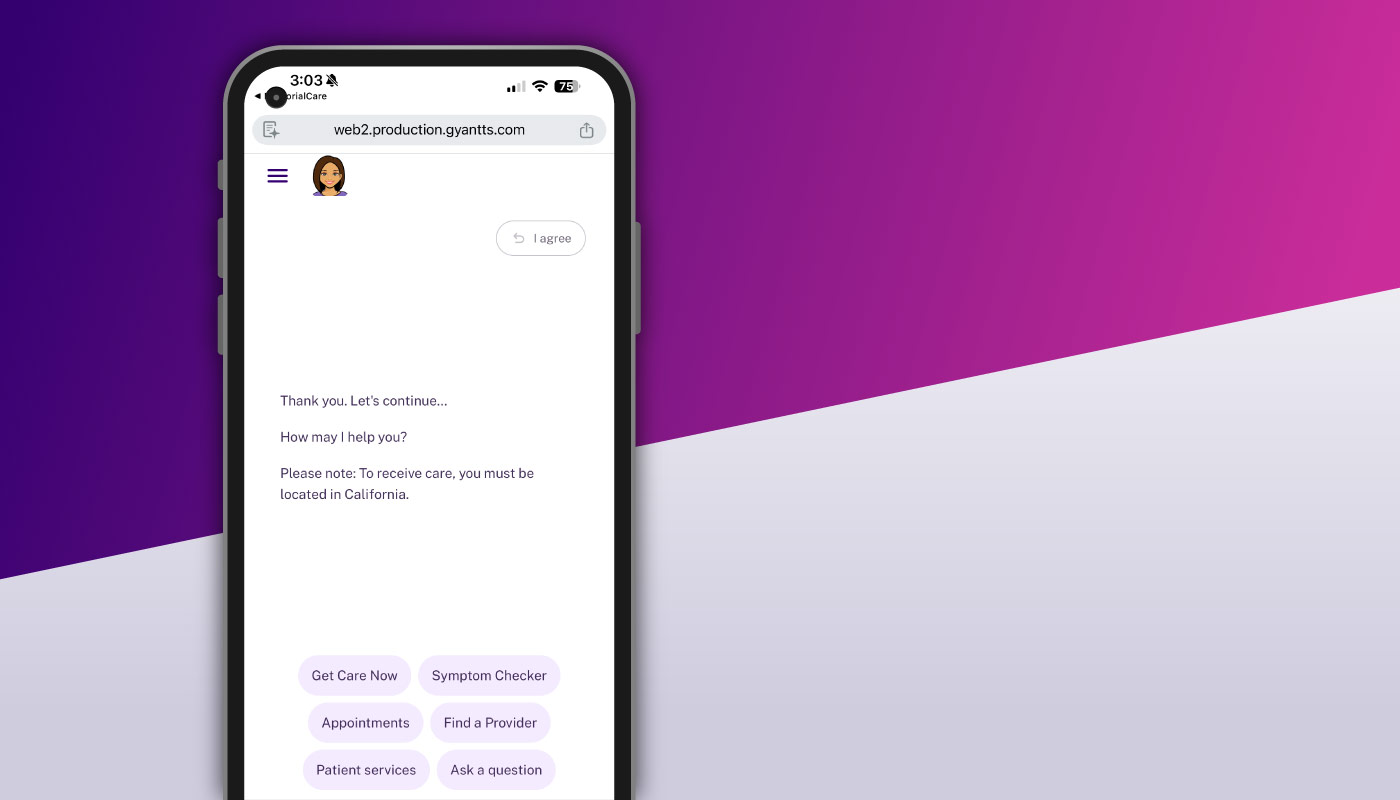
Support Around the Clock—Always Here to Help
Online Chat 24/7 offers real-time assistance whenever you need it. Our virtual assistant can guide you through finding providers or locations, booking appointments, checking symptoms, or answering common questions. If you need more help, she’ll connect you with a live team member.
About the App
The MemorialCare app offers secure, 24/7 access to your patient portal, allowing you to easily view your personal health information and manage your medical needs. Like the myChart app, you can schedule appointments, renew prescriptions, message your primary care provider (PCP), view test results, and pay medical bills. However, the MemorialCare app is designed to be more intuitive, with enhanced features for a smoother experience:
- Log-In Screen: Get quick access to features such as ‘Get Care Now,’ Find a Provider or Location, and Online Chat 24/7 before you even need to sign in.
- Personalized Dashboard: Instantly see alerts and upcoming appointments tailored to you, with prioritized health information pulled from our electronic medical records system.
- Provider Search: Find and learn about providers directly within the app. Searches can be filtered to show in-network providers, allowing you to access their bio pages or schedule appointments seamlessly.
- Get Care Now: Quickly locate and book urgent care options—Click, Call, or Visit—showing the next available appointments first for immediate access.
- Online Chat 24/7: Our virtual assistant answers questions, helps book appointments, resets passwords, and acts as a symptom checker. If needed, you’ll be connected to a friendly human.
- Biometric Login: Use face recognition or fingerprint for fast, secure access.
- Streamlined Billing: View and pay all MemorialCare clinic and hospital invoices in one place, with options for credit card, bank payment, Google Pay, or Apple Pay.
- Helpful Resources: Access a searchable medical library, link health accounts, share records, and find information on advance care planning, research studies, and community resources.
- Easy Sign-up: If you already use myChart, your login works here. New users can sign up in just two minutes.
With these features, the MemorialCare app empowers you to take control of your health—anytime, anywhere.
You can download the MemorialCare app, available for both mobile and tablet, for free from Google Play or from the App Store (search for "MemorialCare").
Download here if you own an Android.
Download here if you own an iPhone.
System requirements:
Android 8.0 (Oreo) or higher.
iOS 13.0 or higher.
You will need to create an account. After you’ve downloaded the app from either Google Play or the App Store, follow the instructions below based on whether or not you already have an existing myChart account.
I already have a myChart account:
Using the MemorialCare app is easy if you already have an existing myChart account. You simply log in using your same myChart credentials. All of the information you have been viewing in your myChart app will automatically be available to you.
I do not have a myChart account:
Creating a new account is easy. You can choose from among the following options.
- Use the activation code you received and complete the ‘create an account.’ Activation codes are on patients’ after-visit summaries or can be provided by the staff at your physician’s office or by the Navigation Center.
- Don’t have an activation code? Follow the ‘no activation code’ workflow and create an account using your cell phone information.
- Use our Online Chat 24/7 feature to engage with a live human who can help you create an account.
- Call the Navigation Center at (877) 696-3622 for help.
- Ask at your physician’s office on your next visit. The staff will be able to help you set up your account.
Yes. Since the MemorialCare app is built on the myChart platform, you can also access your patient portal and health information through the myChart website. Log in to myChart from the top menu on the MemorialCare website, or go directly to the login page here.
Yes, the app offers support in Spanish as well. To switch the language from the default English to Spanish, follow these steps:
- Open ‘Settings’ on your mobile device.
- Select ‘Apps’ to find the MemorialCare app.
- Within the app settings, locate the ‘Language’ option and change it to Spanish.
Alternatively, you can adjust the language preference directly through the MemorialCare app:
- Tap the hamburger menu in the upper-left corner.
- Scroll down to ‘Settings’ and select ‘Account Settings.’
- Under ‘Preferences,’ choose ‘Change Language,’ which will redirect you to the appropriate settings on your device.
If you’re using an older device, you may need to go into the ‘General’ section of your device’s settings, then choose ‘Language & Region’ to select Spanish.
MemorialCare App & myChart
No, the myChart app will remain available, and there are no plans to replace it with the MemorialCare app.
Both the MemorialCare app and the myChart app give you secure access to your patient portal and medical records. However, the MemorialCare app is designed to offer a more modern, intuitive and personalized experience.
Our app is built on the same trusted myChart platform used by many health systems, which is why you may still see the myChart name or logo in certain areas. Think of the MemorialCare app as an enhanced version of myChart—featuring a refreshed design and tools created specifically for the needs of MemorialCare patients.
From the moment you open the app—even before logging in—you’ll see a clean, modern layout that makes it easy to find what you need. Quick links help you locate a provider or facility, schedule an appointment or use “Get Care Now” for immediate medical needs.
Once you’re logged in, you’ll receive a more personalized experience. Your care suggestions are tailored to your location, insurance, health history and preferences.
And with Online Chat 24/7, support is always available. Whether you need help with billing, finding a provider, booking an appointment or checking symptoms, our virtual assistant can guide you—or seamlessly connect you with a live team member if needed.
No. Anyone can download the MemorialCare app and create a new account to access all available features.
If you already have a myChart account, you can log in to the MemorialCare app using your existing myChart username and password.
Yes, both myChart and the MemorialCare app pull the same patient information from our health records systems into their apps, so your past medical information will not be lost.
Scheduling Appointments
Within the app, you can schedule a variety of appointment types, depending on your need, such as:
In-Person or Video Visit Appointments:
- Schedule an in-person or video visit with your primary care provider (PCP), a PCP in the same office, a nurse, or a member of your primary care team. You can also schedule with OBGYNs. And if you've been given a 'ticket' to schedule an appointment, you can do so in the app.
Same Day/Get Care Now Options (learn more):
- 24/7 QuickCare Visit – complete a questionnaire about your condition, and a doctor will respond with a treatment plan via email within an hour.
- 24/7 Virtual Urgent Care – Get care now from the comfort of your home.
- In-person Urgent Care – Visit one of our Urgent Care locations.
- Call us 24/7 – Call (877) 696-3622 to speak with a live human who can help you find the care you need.
- 24/7 Ask a Nurse – Call (877) 696-3622 and ask to speak with an experienced nurse to discuss symptoms or ask general medical questions.
- Online Chat 24/7 – Be guided to the right level of care when you share your symptoms with our virtual assistant.
In Emergencies:
If you are experiencing a life-threatening situation, it is vital that you access emergency services by calling 9-1-1 or visiting the nearest Emergency Department.
To schedule an appointment with your specialist, we recommend contacting their office directly. Within the app, you can find their contact number by using the ‘Find a Provider’ search feature to view their bio page. Their office number will either be displayed in the top marquee or listed under ‘Locations’ on the page.
To find a provider in the app:
- If you are not signed in, look for the “Find a Provider” link on the initial login page.
- If you are signed in, tap the hamburger menu in the upper‑left corner. Under Quick Links, select “Find a Provider or Location.”
Tap the hamburger menu in the top left and look for 'My Health Record.' Then select 'Visits.' Find the appointment you want to change. In the appointment box, there are options to reschedule or cancel the current appointment. Please note that there are time parameters that can restrict the cancel/schedule functions.
After scheduling an appointment, you may receive a request to fill out a Pre-Visit Check. Completing a Pre-Visit Check saves you time on your appointment day by allowing you to update certain information in advance. For example, you can update your demographic or contact information, upload photos of your insurance cards, complete medical questionnaires, e-sign certain documents, and make a balance or copayment. Please note that there may still be forms to complete upon arrival.
Navigating the App
To change your email, phone or address within the app, tap the upper-left hamburger menu and scroll down to the ‘Settings’ section. Then select ‘Personal Information’ to change your contact information.
The first time you use the app, we recommend reviewing your account details for accuracy and verifying your email and phone number so we can reach you.
To view your test results, log in to the app and select the 'Test Results' button on the myChart Dashboard welcome screen. New results will appear first, but you can also access your past medical test results.
Please keep in mind that your test results may be available in the app before your primary care physician (PCP) has had a chance to review them. Be sure to check back later to see any comments or notes from your PCP.
If you would like to receive notifications about your test results, please let us know your preferred method of communication. You can manage your 'Communication Preferences' by tapping the hamburger menu in the upper left corner and scrolling to the 'Settings' section.
In many cases, it is easiest to request a refill through the pharmacy, which will then communicate with your doctor. If your doctor has any questions, they will reach out.
However, you can also request renewals in the app. To request a prescription refill in the app, log in. On the opening welcome screen, select the ‘Medications’ button to view your ‘Current Medications.’ Scroll down to see your medications and select the ‘Rx Renewal’ link under the medication you wish to renew. Follow the prompts to request a renewal.
In the app’s document center, you will be able to download your visit summaries as well as some medical records you may have requested. You will be able to review who has accessed your records and sign documents sent to your account.
To find the document center, go to the hamburger menu on the top left. Choose ‘My Health Record’ and then select ‘Document Center.’
To message your doctor using the app, follow these steps:
- Tap the upper-left corner hamburger menu.
- Scroll down to select ‘Communication’ and then choose ‘Message Center.’
- Click on the large orange ‘Send a Message’ button and select ‘Non-urgent Medical Question.’
- Follow the prompts to send your message to your PCP or other primary care team members.
Please allow 3-4 business days for a response.
If your doctor is available, they may read your message. If they are not available, it may be a member of your immediate primary care team, such as a physician assistant. Depending on the message you sent, primary care team members may be able to answer your questions, and if not, they will confer with your doctor.
Please note that if you are a proxy to someone else’s account, you may see messages sent if that individual has not excluded you at the time of sending the message.
We value your privacy. Additionally, we are HIPAA-compliant and treat all communication between you and our medical staff with respect and confidentiality.
You can choose how you wish to receive notifications, such as “You have a new test result,” appointment reminders, and billing statements. To customize your preferences, tap on the upper-left hamburger menu and scroll to ‘Settings’. In this section, look for the link to ‘Account Settings.’ Next, scroll down to ‘Notifications’ and select ‘Communication Preferences.’ Here, you’ll be able to see your contact information and select the communication methods you prefer, including email, text message, push notifications, phone, and/or mail. Note that MemorialCare may message you for other reasons (e.g., helping you prepare for a procedure with us or welcoming you home and providing resources after a hospital stay). You can opt out of messages from MemorialCare at any time by responding STOP to the message.
IMPORTANT: When using the MemorialCare app for the first time, we recommend reviewing your account details for accuracy and verifying that all your contact information is up to date. To check your email, phone number, or address, go to the upper-left hamburger menu, select ‘Settings,’ and then click on ‘Personal Information’ to review and update your contact information.
Medical Proxy
A patient’s medical records are private and cannot be shared with others unless the patient grants another person proxy. A proxy is someone who can have access to another patient’s health information.
- Persons aged 12 and above may grant a proxy to someone. They do so by inviting another individual to their account.
- For minor children between birth and 11 years, parents or legal guardians are legally eligible to serve as their proxy. For those interested in becoming a proxy of a minor child, they should ask for access at the child’s pediatrician’s office. The staff will walk them through the process.
To learn more about the different ways one can share medical records, tap the hamburger menu in the upper-left corner. Scroll down until you find ‘Share Your Record’ and select ‘Sharing Hub.’
People aged 12 and above can grant a proxy to another individual by invitation.
To send an invitation, the person granting permission must go to the upper-left hamburger menu, select ‘Share Your Record,’ and then select ‘Sharing Hub.’ Here, you will find details, including videos, on how to invite someone to have access to your health records.
To view a proxy account, log in to the app. At the top right is an icon with your photo or initial. You should be able to toggle this to see and select other accounts you have access to.
To manage your proxy accounts, go to the app’s upper-left hamburger menu, select 'Share Your Record,' and then select ‘Sharing Hub.’ Here, you’ll be able to view, revoke or invite proxies to an account.
Sharing & Linking Records
To share your medical records, tap on the hamburger menu in the upper-left corner. Scroll down until you find ‘Share Your Record’ and select ‘Sharing Hub.’ Here, you will find details on how to share your health information with others, such as a family member, a health care provider or a health care organization. Select who you want to share with and follow the steps provided.
To link your health data from another organization to MemorialCare, tap the hamburger menu in the upper-left corner. Scroll down to find ‘Share Your Record’ and select ‘Link My Accounts’ for instructions.
Passwords, Accounts & Technical Issues
If you’ve forgotten your username or password, you have two options, both available from the app’s login screen:
- Ask our virtual assistant for help. From the login screen, select ‘Online Chat 24/7.’
- Receive an access code. From the log-in screen, select the “myChart log in to access appointments, messages, test results, and more” link.
- You’ll be taken to the login page, where you can select “Forgot login information” to access the “Recover your account” page.
- Enter the requested email address or phone number to receive a recovery code for your myChart account.
- Enter the code to reset your password.
If you need to change your password before logging in, scroll down on the app’s login screen and select ‘Online Chat 24/7.’ Our virtual assistant is ready to assist you with the process.
If you’re already logged into the app:
- Tap the hamburger menu in the upper-left corner and choose ‘Online Chat 24/7’ from the ‘Quick Links’ section. Our virtual assistant can guide you through changing your password.
- Alternatively, click the drop-down menu in the upper-right corner and select ‘Account Settings.’ In the ‘Login’ section, you’ll find the option to change your password.
We offer several options:
- Use Online Chat 24/7 to ask our virtual assistant for help. If our assistant is unable to fully help you, you can be connected to a live human via chat or phone.
- Call us at (877) 696-3622 and speak with a friendly human.
- During your next visit, you can ask the staff at your physician's office to help you create an account.
If you notice that your medical information in the app is incorrect or you wish to make an amendment, such as changing your legal name, please notify your physician’s office and provide the updated information. The staff will be able to update your patient information in Epic, our electronic medical record system. Please note that you may be required to provide documentation and/or visit the office to make any changes.
The app was built to log a person out after 20 minutes of inactivity. This is a security measure to help protect your personal information. Simply log back in to regain access.
For technical issues, please email us at: [email protected].
Accounts can be disabled for a number of reasons, such as perhaps too many failed login attempts. If your account is disabled, please call us at (877) 696-3622 for help.
Questions?
The quickest way to get answers to your questions may be to use our Online Chat 24/7 feature. If our virtual assistant cannot help you, you can choose to chat with a live human. Or you can call us at (877) 696-3622 to speak with a representative.